
How to Create & Edit a New Retailer Profile
This procedure will guide you through the creation of your Retail profile in ShowroomX upon receiving the Brand's email request containing your login credentials and password.
- The Brand company you wish to engage with will include you in their Retailer profile.
2. This action will prompt an email verification to be dispatched to you, initiating the confirmation of your email. Click on "Verify Email" as illustrated in the sample email below:

3. Subsequently, you will be directed to a "Sign Up As Retailer" screen, where you'll input the required information. Once completed, click on "Agree & Join":

4. You will be guided to the page where you can create your Retailer's profile, comprising four distinct steps.
Step 1- enter all the information about your company:
Company Logo: upload your company logo
Corporate Name: input your company corporate name
Trade Name: if applicable, enter your trade name
Description: Optionally, provide a brief description of your Retail profile in the designated field
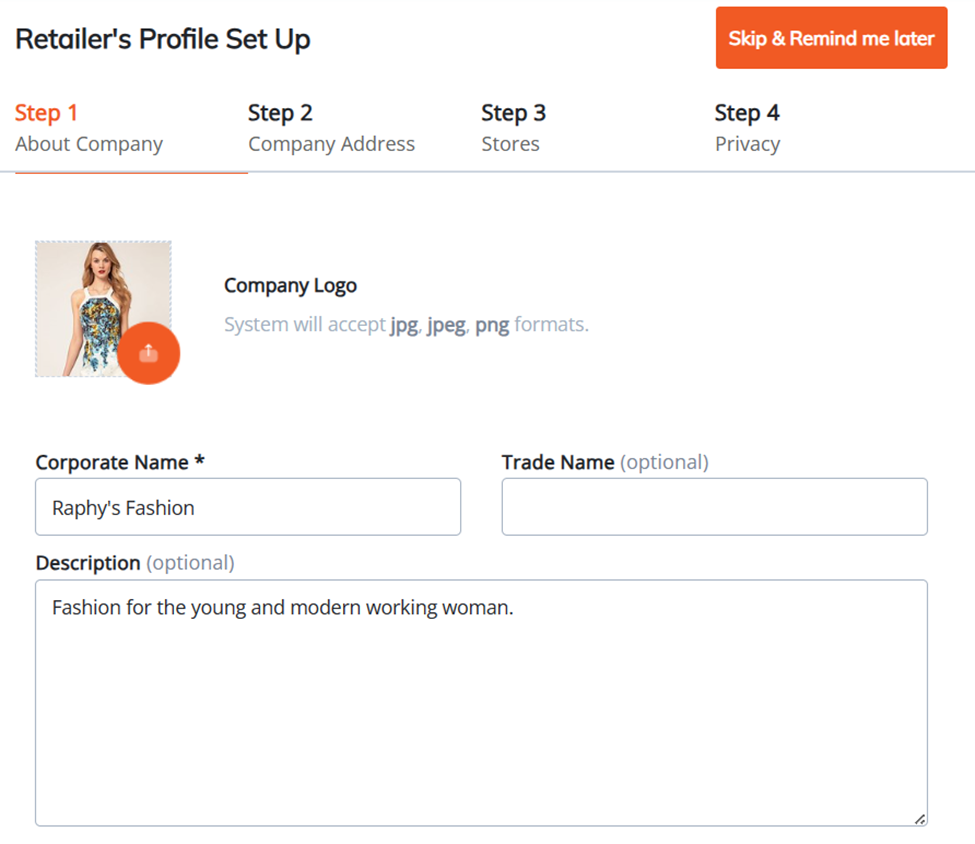
Once you have entered all the required information on the Step 1 screen, click on "Next" to proceed to the "Step 2" section.
Step 2- enter all your company's address information
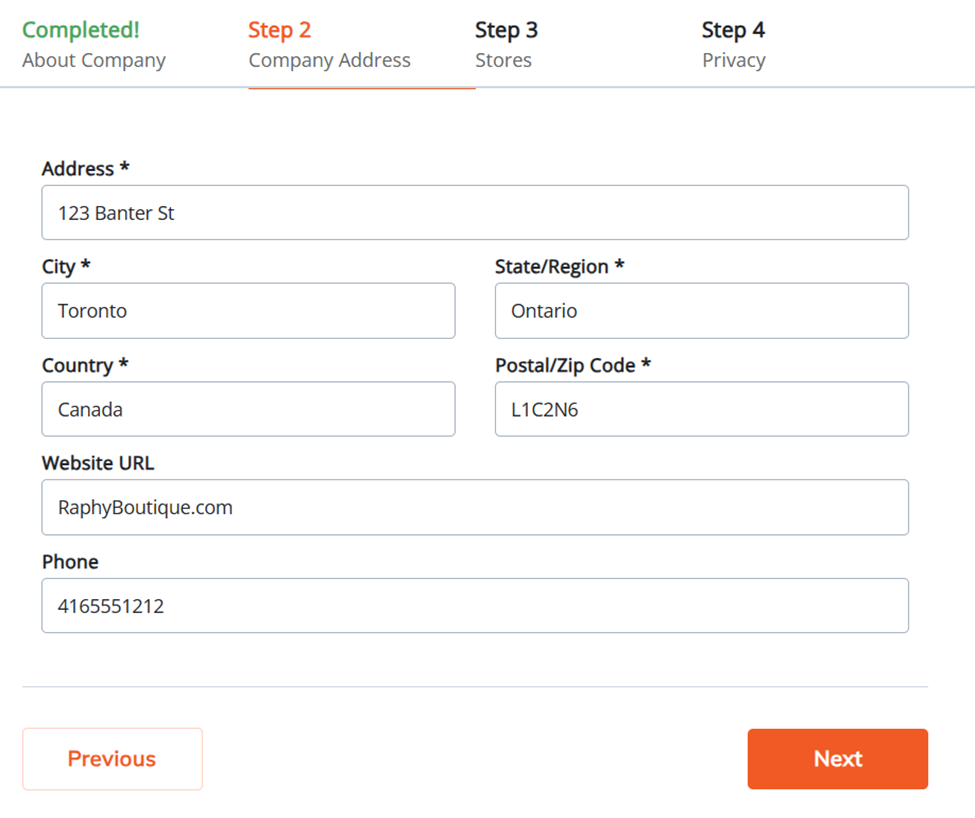
Upon completing the information entry on the Step 2 screen, click on "Next" to advance to the "Step 3" section.
Step 3- input all your store location information by selecting "Add Another Store+," fill out the store details, and upon completion, click on "Save." Repeat this step for each individual store you wish to set up.

Once you have entered all the necessary information on the Step 3 screen, click on "Next" to proceed to the "Step 4" section.
Step 4- configure your retailer's privacy settings and choose the currency in which you prefer to conduct business when placing orders.
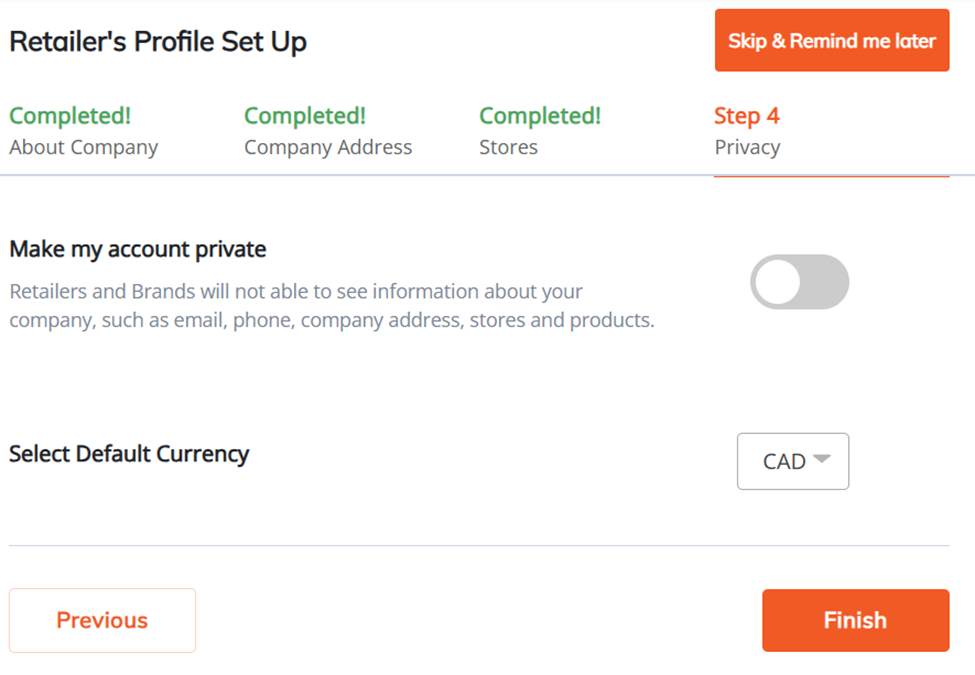
Upon completing the entry of all information on the Step 4 screen, click on "Finish" to conclude the process.
Note: You have the flexibility to make changes to your Retailer's profile information anytime by navigating to the "Dashboard" tab and selecting "Edit Company".

Note: You can also update your store listings by accessing the "Dashboard" tab and clicking on each store, utilizing the Edit icon on the right.
